The HELIOS ESS supports closed-loop communication with the Victron inverters listed in the Closed-Loop Communication with Inverters table in the HELIOS ESS Closed-Loop Communication topic.
To enable communication between the inverter and batteries:
-
Connect a CAT6 or higher modified cable (refer to Cables for Closed-Loop Communication Without LYNK II - Victron Energy) from the HELIOS ESS COM2 port to the CAN port of the Victron GX device.
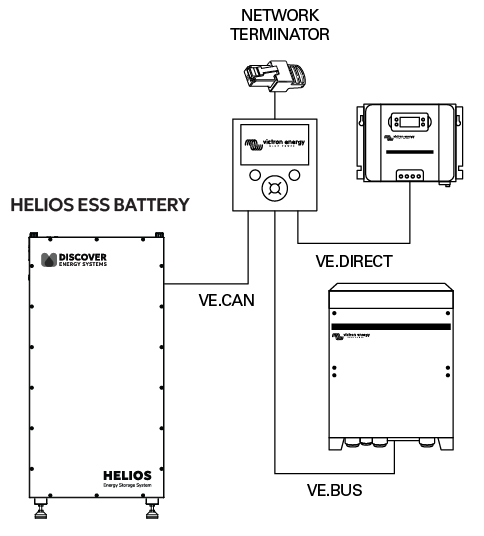
Victron CAN Connection
-
Using a touch screen or other user interface of the GX device, set the VE.Can port and CAN-Bus BMS communication rate to 500 kbit/s to match the communication speed on the HELIOS ESS battery.
-
Device List > Settings > Services > VE.Can port > CAN-bus profile
-
Select CAN-bus BMS (500 kbit/s) (Pylon)
-
-
Return to the Device List, and the Discover Lithium Battery should now appear as one of the devices.
-
During normal operation, the battery’s charge parameter limits are set by the BMS and communicated by the Victron GX device to the inverter-charger and MPPT.
To optimize the performance of a Victron system, manually set the following DVCC menu items using the Victron GX device, and reboot the system.
If communication is interrupted between the BMS and Victron inverter-charger, the Victron inverter-charger stops charging until communication is re-established.
Victron Closed-loop Configuration Procedure
Refer to the latest Discover Energy Systems documentation for battery values and the latest Victron documentation for menu navigation and details on the setup procedure.
-
Using a touch screen or other user interface of the GX device, set the VE.Can port and CAN-Bus BMS communication rate to 500 kbit/s to match the communication speed of the CAN port on the HELIOS ESS battery.
Device List > Settings > Services > VE.Can port > CAN-bus profile
Select CAN-bus BMS 500 kbit/s.
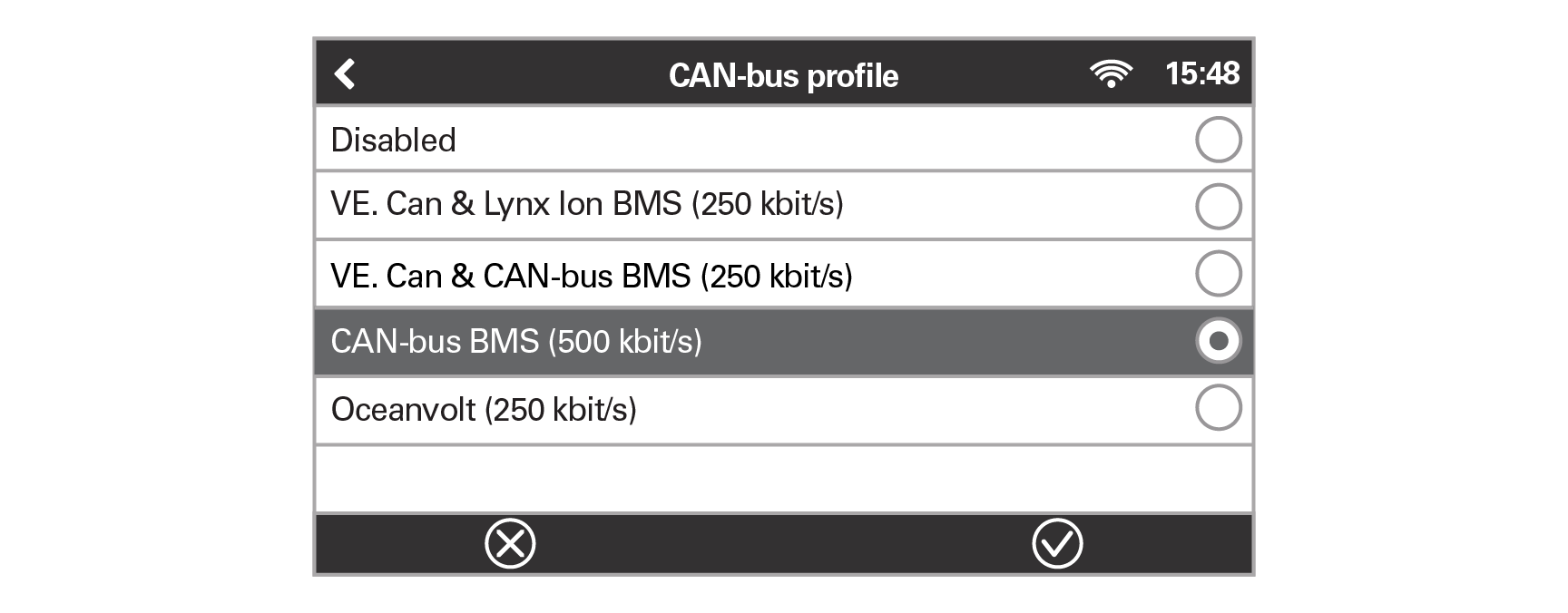
Victron CAN-bus Profile
Return to the Device List, and the Discover Lithium Battery should now appear as one of the devices.
Device List
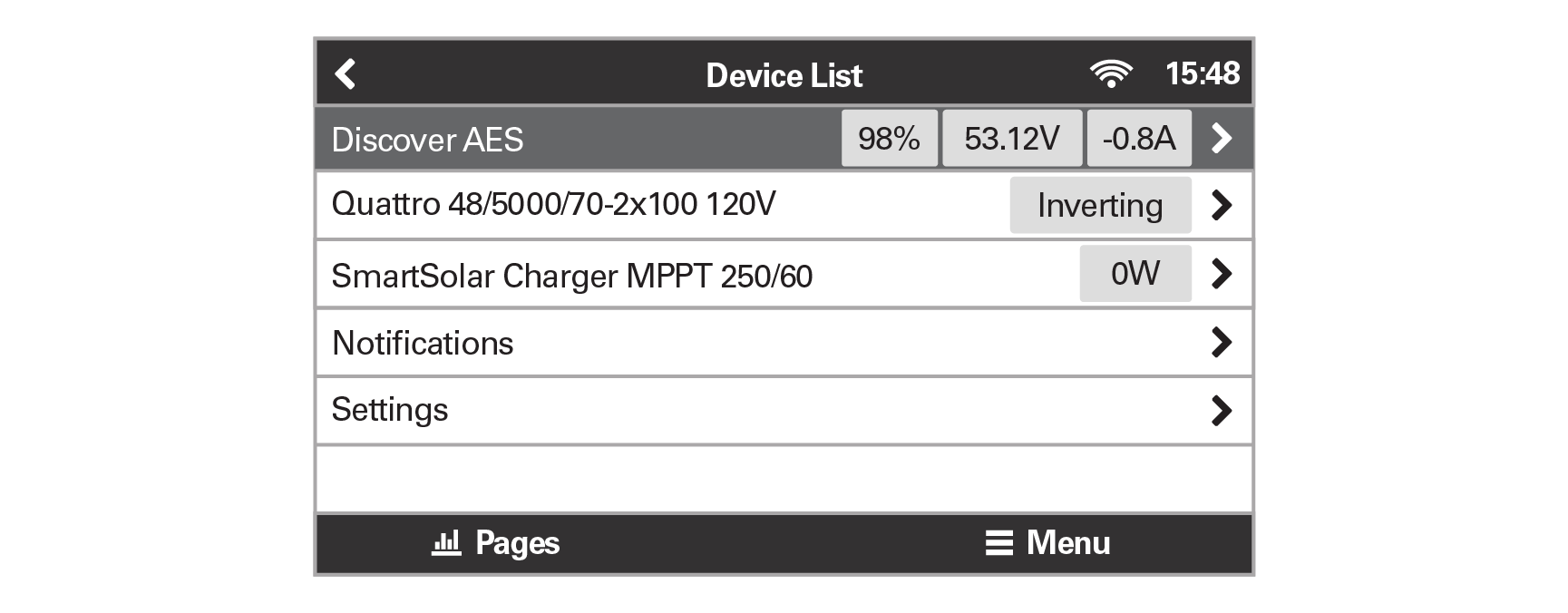
Victron Device List
|
NOTE |
|---|
|
If Discover does not appear on the Device List:
|
-
To confirm that all batteries in the network are communicating with the Victron system, review the actual battery parameters. If multiple batteries are connected, a single entry shows the total limit of all the batteries.
Device List > Discover AES > Parameters
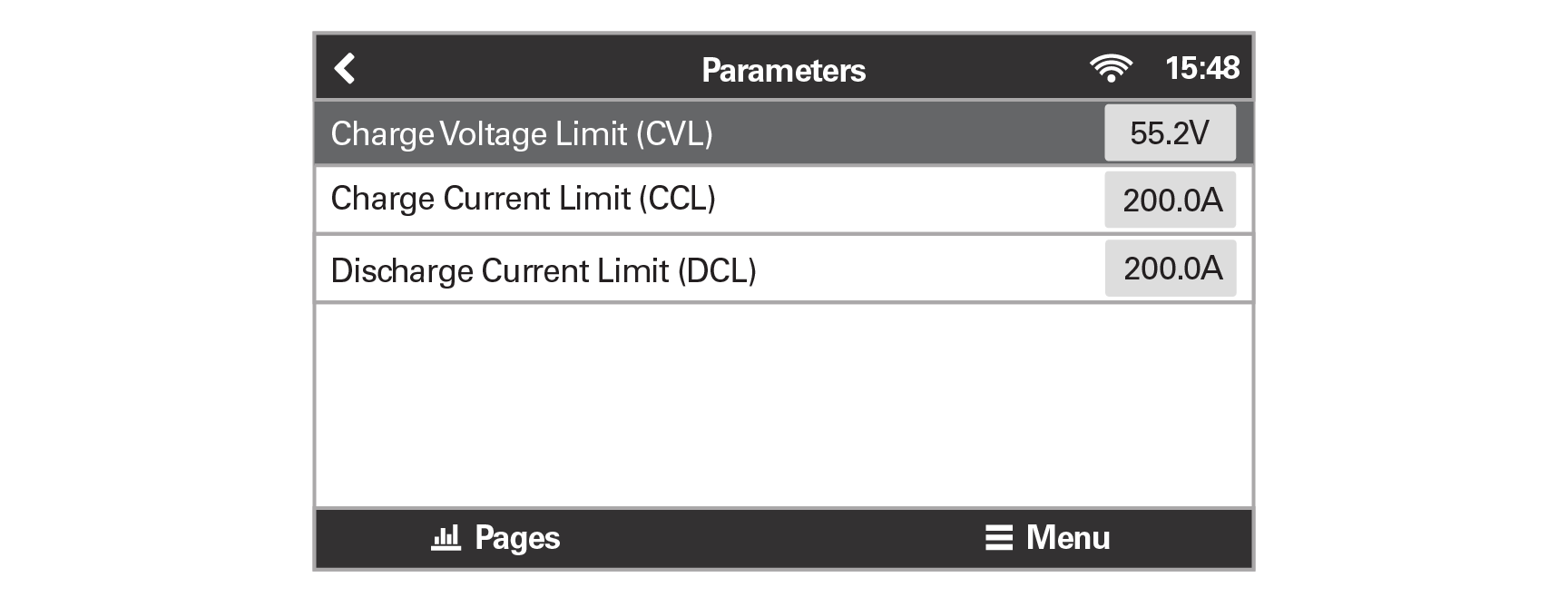
Victron Battery Parameters
Configurable Closed-Loop Settings
During normal operation, the battery’s charge parameter limits are set by the BMS and communicated by the Victron GX device to the inverter-charger and MPPT.
To optimize the performance of a Victron system, manually set the following DVCC menu items using the Victron GX device and reboot the system.
Device List > Settings > DVCC
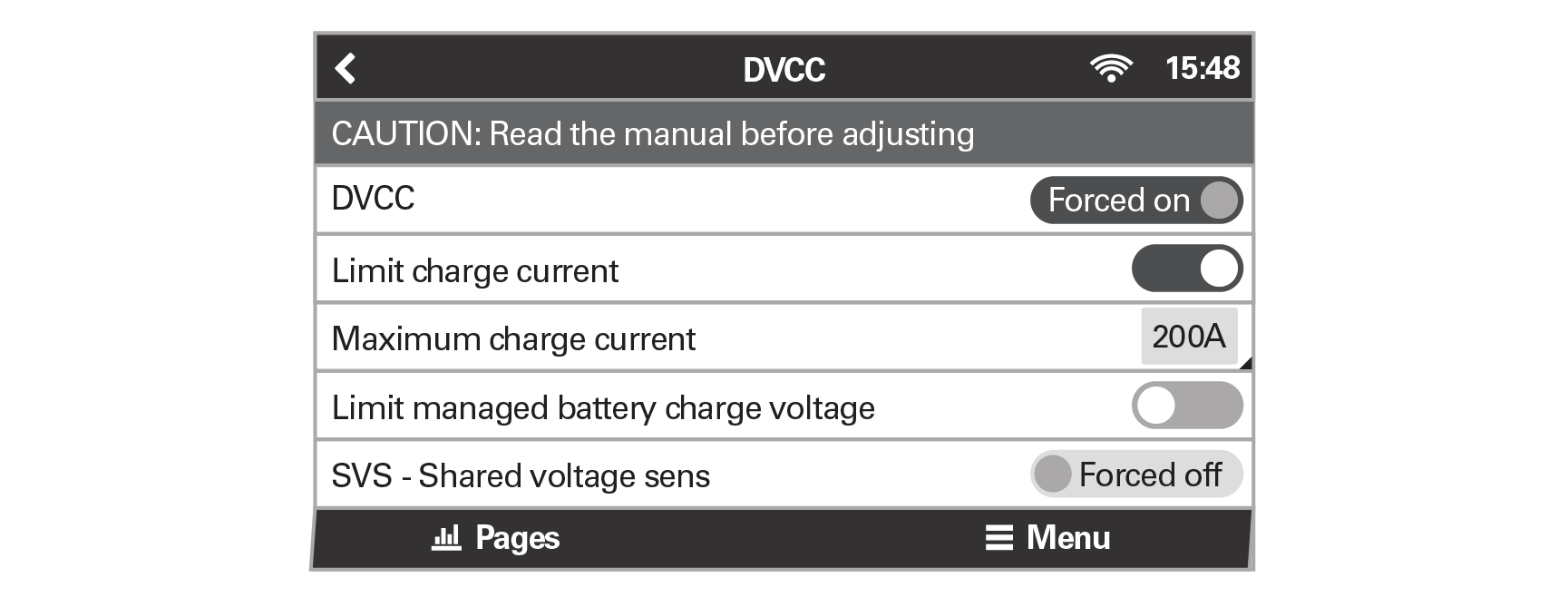
Victron DVCC Menus 1/2
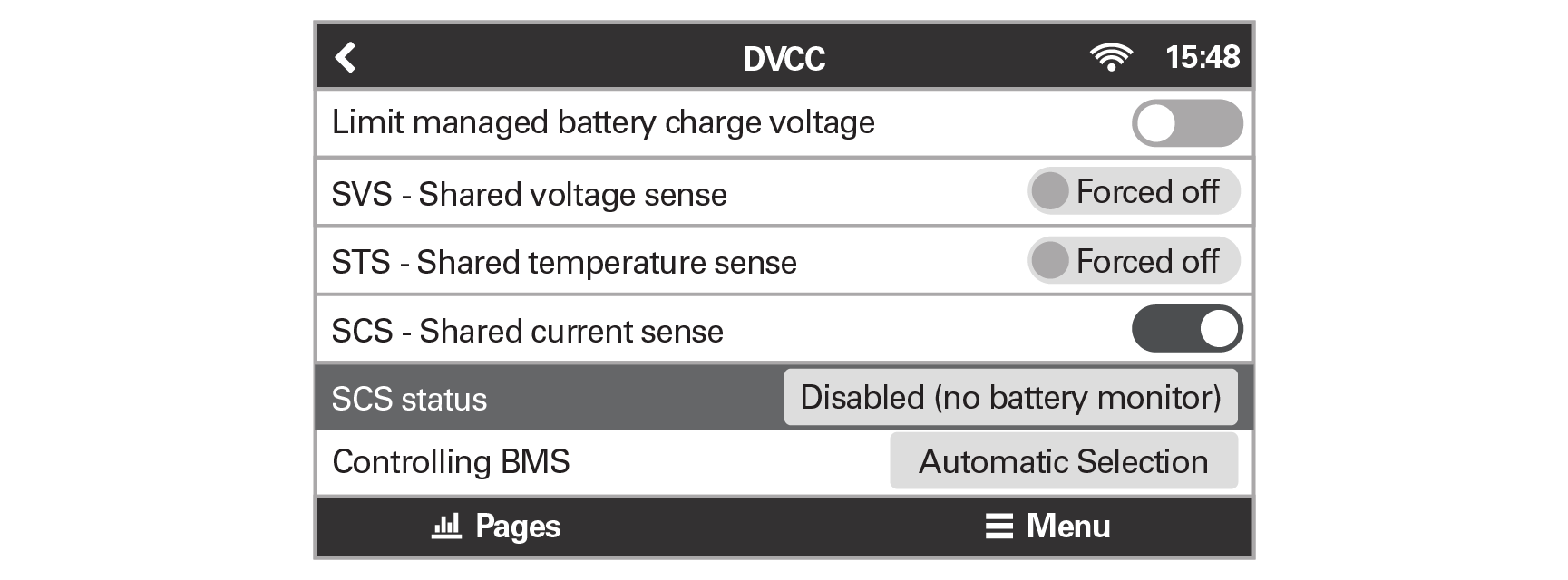
Victron DVCC Menus 2/2
|
DVCC Menu |
Setting |
|---|---|
|
DVCC (Distributed Voltage and Current Control) |
Forced on |
|
Limit charge current |
ON (1) |
|
Maximum charge current |
Installed number of HELIOS ESS batteries x 200 A, or a lower value if system curtailment is required. NOTE: Each HELIOS ESS battery is rated at a 200 A discharge rate, but when connected in parallel, the maximum current is limited by internal busbars. For the recommended maximum current for paralleled HELIOS ESS, refer to Minimum Specifications for Battery Systems. |
|
Limit managed battery charge voltage |
Disable |
|
SVS - Shared voltage sense |
Forced off (2) |
|
STS - Shared temperature sense |
Forced off |
|
SCS - Shared current sense |
ON |
|
SCS status |
(Displays the current status) |
|
Controlling BMS |
Automatic Selection |
(1) Limit charge current works across the whole system. MPPTs are automatically prioritized over the mains. When the BMS requests a maximum charge current that differs from the user-configurable setting, it uses the lesser of the two.
(2) SVS should be set to OFF. Victron support has reported instances of conflicts when SVS is set to ON with a Lithium BMS.
Saving the Configurable Closed-Loop Settings
After all DVCC menu items have been set, reboot the system to complete the closed-loop configuration.
Device List > Settings > General > Reboot?
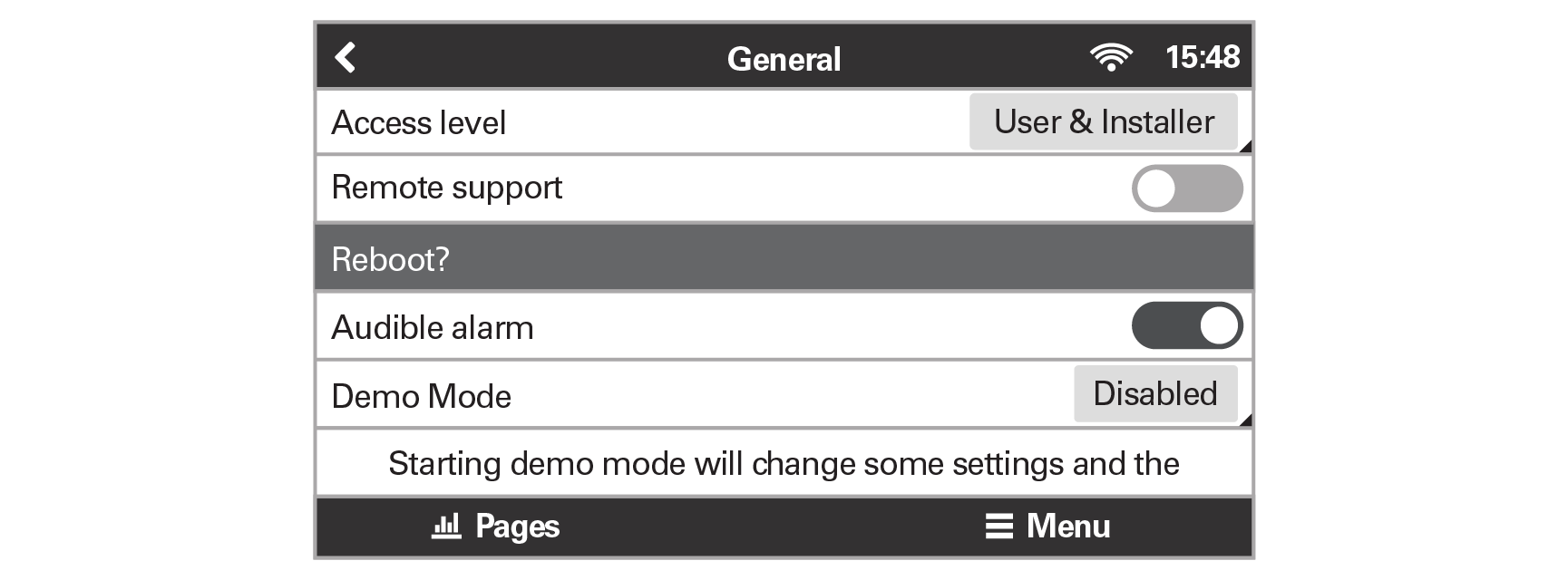
Victron Rebooting the System
|
NOTE |
|---|
|
To avoid conflicting network information and data, do not use a Victron BMV battery monitor when using the LYNK II Communication Gateway. |