Cabinet Initiation
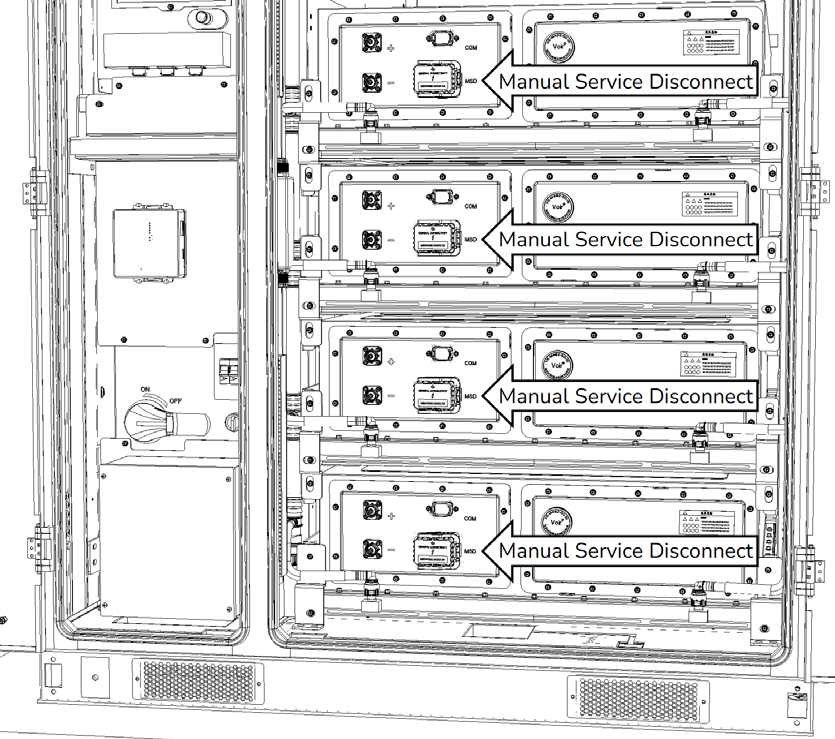
Install the Manual Service Disconnects (MSDs) into each battery pack’s designated receptacle. Handle with care to avoid damage, and follow all installation instructions provided.
The MSDs are fuses. Perform a continuity check on them before installation. If any have failed, please get in touch with Discover’s product support team to arrange a replacement.
|
NOTICE |
|---|
|
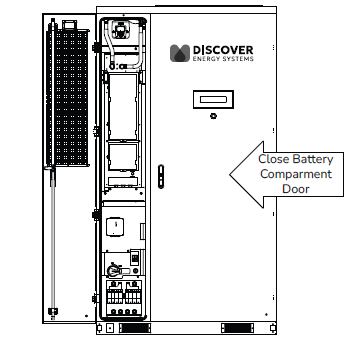
SYSTEM SHUTDOWN The battery compartment door must remain closed during system operation. Opening the door will trigger an alarm and automatically de-energise the system. Failure to follow these instructions may result in equipment damage. |
Cabinet Activation
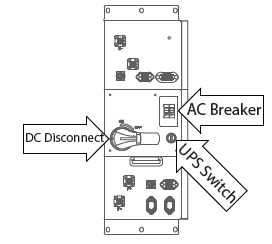
Before powering up the inverter with the battery, ensure all covers, enclosures, and access panels are securely closed.
|
NOTE |
|---|
|
Follow these steps, in order, to avoid a pre-charge error. |
-
Close the DC Isolator
-
Confirm the AES Cabinet’s DC disconnect is in the closed position (ON) and secure.
-
-
Power on the Auxiliary AC Input Circuit
-
To energise the system, provide power to the Auxiliary AC input through the grid, generator, or backup load panel. If none of these power sources are available, skip to step 3.
-
Close the AC breaker on the HV Box.
-
-
Blackstart (if applicable)
-
For systems without an initial AC supply, use UPS control to black-start the cabinet (control power energisation).
-
The UPS is for short-term operation only. Promptly restore AUX AC power once available.
-
-
-
Cabinet Initialisation
-
The Battery Control Unit (BCU) and LYNK II Gateway will power up and initiate a system initialisation sequence.
-
Ensure the battery side compartment door is closed during the startup process.
-
The green LED on the cabinet door flashes to indicate the system is Ready.
-
Allow up to 60 seconds for the LYNK/BCU to initialize and check internal systems.
-
-
-
Pre-Charge Circuit Activation
-
After initialisation, the BCU engages the pre-charge circuit and provides power to start the inverter.
-
The BCU then closes its main contractors when the pre-charge process is complete, at which point the inverter will have full power.
-
-
-
Verify Cabinet Status
-
Confirm that the cabinet indicator LEDs indicate normal operation.
-
On successful startup, the status LED on the cabinet door will be solid green, indicating the system is in operation.
-
If the status LED does not become solid green or error indicators appear:
-
Connect your laptop running LYNK ACCESS to the LYNK II Gateway to diagnose the battery.
-
You can also refer to the troubleshooting section of the AES Cabinet manual for diagnostic steps.
-
-
-
-
If your AC auxiliary power is backed up from the load panel, verify the power to the temperature management system (Step 2).