-
Connect the LYNK II to a PC with LYNK ACCESS software installed. Ensure that only one LYNK device is connected to the Computer.
-
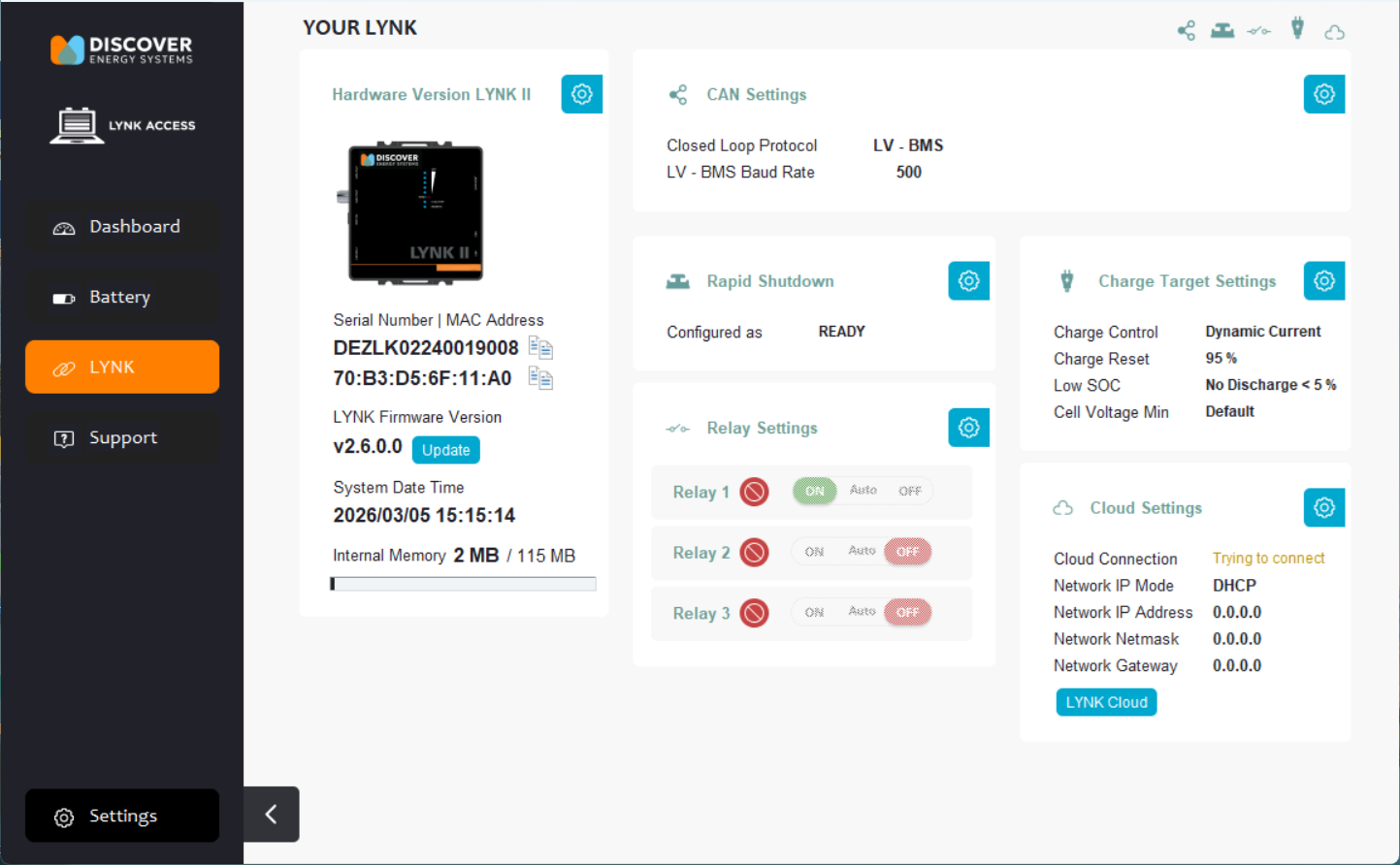
Start the LYNK ACCESS software and select the LYNK tab.
-
Select the blue gear icon in the upper-right area of the CAN Settings tile.
-
Select one of the pre-configured Closed-Loop Protocols to complete the configuration.
-
Click SAVE to confirm the configuration.
Refer to the appropriate application note for instructions on setting the external device to communicate correctly with LYNK II. The Discover Energy Systems website has up-to-date application notes for various external devices.
|
NOTICE |
|---|
|
EQUIPMENT DAMAGE Saving configuration changes using LYNK ACCESS will automatically restart LYNK II and cause communications with other devices to be interrupted. Failure to follow these instructions may result in equipment damage. |
|
NOTE |
|---|
|
AES Cabinet Configuration When using the AES Battery Cabinet, configure the LYNK II Gateway as follows.
UPDATE IMAGE 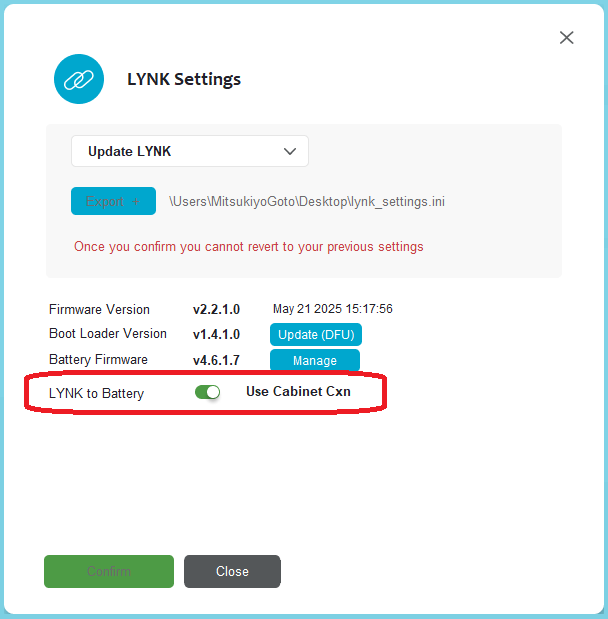
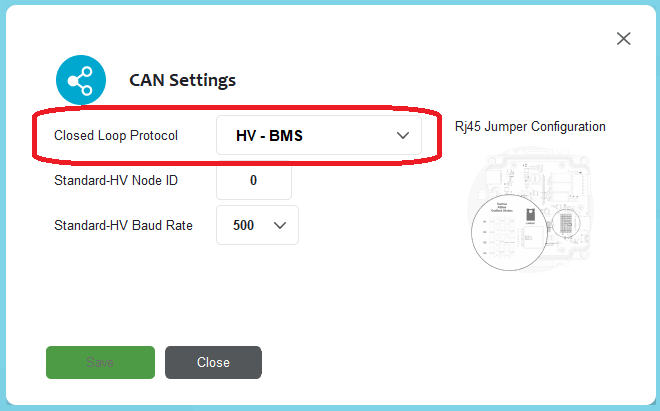
2 LYNK : 1 Cabinet When using two LYNK II Gateways to interface with a single AES Cabinet. 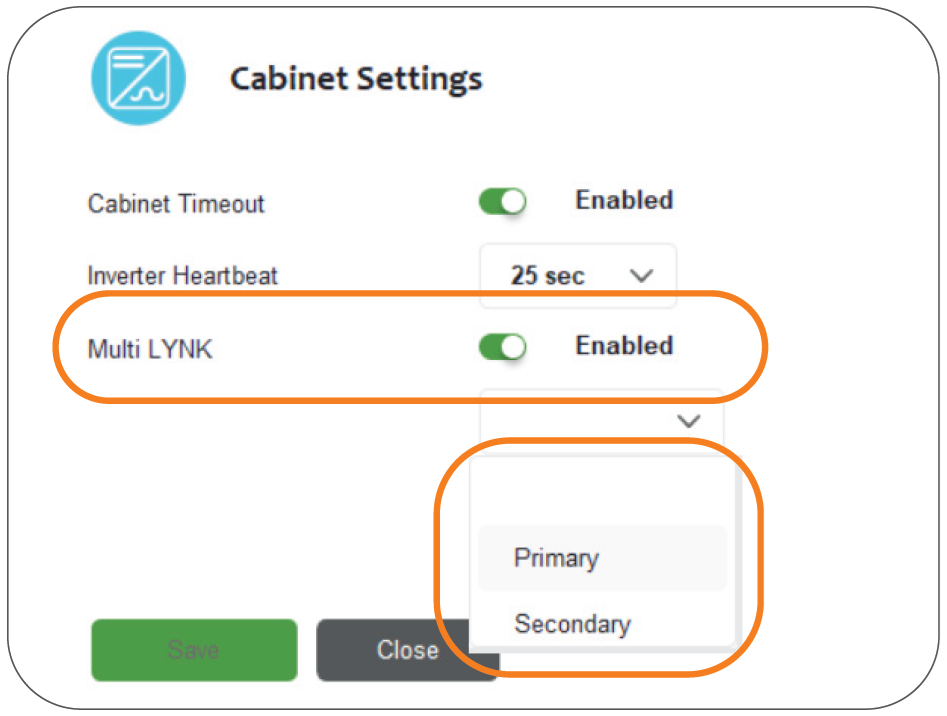
|