Setting up the Insight Device
Updating Schneider Device Firmware
-
Ensure that all devices have up-to-date firmware.
Update the firmware of the InsightHome or InsightFacility.-
Setup > Configuration
-
From Firmware Upgrade, click Upload Package and install the latest firmware file.
-
-
Update the firmware of the XW PRO.
-
Devices > Inverter/Chargers > Firmware
-
Click Upgrade and install the latest firmware file.
-
-
Update the firmware of the MPPT controller.
-
Devices > Charge Controllers > Firmware
-
Click Upgrade and install the latest firmware file.
-
Setting the Insight Device to use BMS Configuration
Set up InsightHome or InsightFacility to use the BMS Configuration with InsightLocal.
This setup menu automatically configures the XW PRO according to the selected battery model and the number of batteries in the system. It also configures the XW PRO’s Charge Cycle to External BMS, the Battery Type to Li-ion, and SOC Control to Enabled. MPPT Solar Charge Controllers connected to the system will also be automatically configured with the correct charge voltage.
|
NOTE |
|---|
|
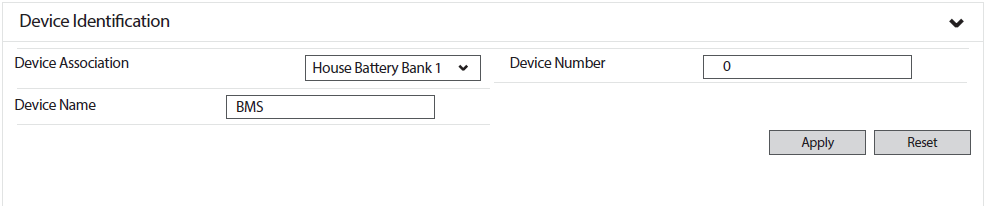
> Device Association
-
InsightLocal > BMS > Configuration (Advanced) > Device Identification
-
From the Device Association drop-down menu, select the appropriate battery.
-
Click APPLY.
|
NOTE |
|---|
|
Complete the Device Association before continuing with BMS Setup. |
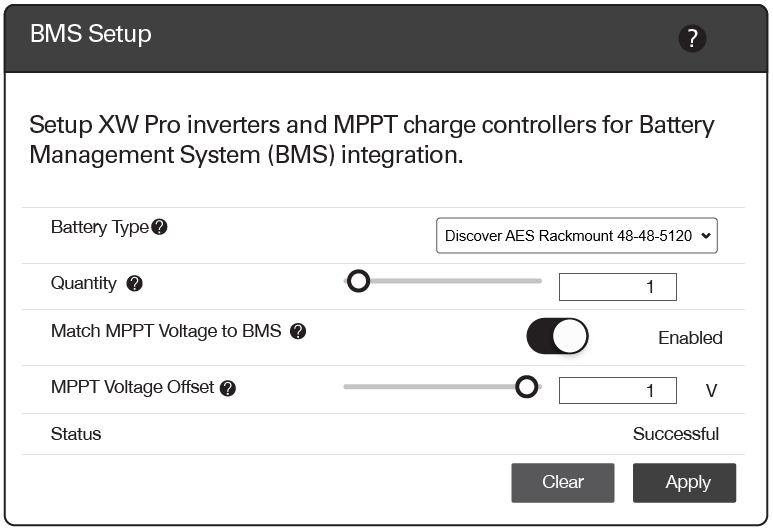
> BMS Setup
-
InsightLocal > Setup > BMS Setup
|
InsightLocal > BMS Setup |
System Value |
|---|---|
|
Battery Type |
Select the appropriate Discover Lithium battery model. NOTE:
|
|
Quantity |
Specify the number of lithium batteries |
|
Match MPPT Voltage to BMS |
Set to ENABLED |
|
MPPT Voltage Offset |
Set to 1.0 V. Adjust if batteries do not fully charge or the battery’s overvoltage protection is engaged. Lowering this value brings the charge controller’s tolerance for the inverter voltage delta closer. For example, 1 V means the charge controller operates at 1 V less than the readings on the inverter. |
Verify Battery Network Connections
Review the following steps to verify that all batteries communicate with the LYNK II Gateway and the Schneider system.
• Devices > Inverter/Chargers > Configuration (Advanced) > Battery Settings
If the connection was successful, the listed Battery Bank Capacity is as follows:
|
Battery Settings |
AES RACKMOUNT
|
HELIOS ESS
|
|---|---|---|
|
Battery Bank Capacity |
100 Ah × number of batteries |
314 Ah × number of batteries |
If the connection is unsuccessful, check that the Discover LYNK/AEbus network is correctly terminated and that there is no damage to the network cabling, terminators, and connectors. Confirm all batteries have the same firmware revision. Rectify any problems and verify again.
|
NOTE |
|---|
|
Discover batteries are visually represented by a Conext Battery Monitor image when viewed on InsightLocal or InsightCloud. |